Mosky’s Blog

Why is My Nexus 7 So Slow? 8 Ways to Speed it Up Again

Source: howtogeek.com

Everyone seems to be complaining about their Nexus 7 tablets slowing down over time. Sure, this is anecdotal — but there are a lot of anecdotes. We’ll cover a variety of ways to speed it up.

Many people report that the update to Android 4.2 slowed down the Nexus 7. However, it seems that many issues can cause Nexus 7 slowness. We’ve looked all over the web to see the tricks people recommend.

Free Up Some Space

Many people report that the Nexus 7 slows down as it fills up. When the 16GB Nexus 7 gets to about 3GB of storage space left, it begins to slow down. Filling up your Nexus 7′s storage space causes its write speed to slow down, slowing down the system.

This will be even more of an issue if you have one of the original 8GB Nexus 7′s, which doesn’t give you much wiggle room for storage space. If it’s slowing down, try removing apps and files to free up space.

Run TRIM (LagFix or ForeverGone)

Due to a bug with the driver for the Nexus 7′s internal Samsung NAND storage, Android on the Nexus 7 was not properly issuing TRIM commands to clear unused sectors. This caused write speeds to slow down dramatically. This was fixed in Android 4.1.2, and Android should now properly be issuing TRIM commands to the internal storage.

However, this update does nothing to fix existing sectors that should have been TRIMMed in the past, but were not. To do this yourself, you can try the LagFix app from Google Play (it requires root). This app is a frontend to the fstrim utility, and it will TRIM your empty storage, fixing this problem.

If your tablet isn’t rooted, you’ll need to use Forever Gone, which will fill your storage up with empty files and then delete them, causing Android to issue the TRIM command on the storage.

If you want to test whether this is actually doing anything, you can run the Androbench storage benchmark app before and after to test your NAND storage write speeds and see if they improve.

Disable Currents Background Sync & Other Background Apps

As we noted in our Nexus 7 troubleshooting guide, Google Currents syncing is a notorious cause of lag on the Nexus 7. If your Nexus 7 is too slow or isn’t responding to touch events properly, open the Currents app, go into its Settings screen, and disable the Syncing option. This will prevent Google Currents from constantly downloading and writing data in the background.

You may also want to disable background-syncing in other apps, or set them to sync infrequently — similar problems could be caused by other apps downloading and writing data in the background.

Some users on Reddit have reported that lag with Android 4.2 can be fixed by disabling location access on your tablet. This will prevent apps like Google Now and Google Maps from determining your current location, but it’s worth a try if your tablet is behaving so slowly. You’ll find this setting under Settings -> Location Access.

Use the AOSP Browser, Not Chrome

Okay, let’s be honest — Chrome is very slow on Android. Chrome is speedy enough on Google’s Nexus 4, but that’s because the Nexus 4 has much more powerful hardware than the Nexus 7. Chrome on the Nexus 7 is rather slow — scrolling in particular can be very jerky. Chrome has improved since the Nexus 7 was introduced, but its performance is still nowhere near good enough.

Android’s included browser — known as the AOSP (Android Open Source Project) Browser — is faster than Google Chrome. In particular, scrolling is much smoother. However, the AOSP browser doesn’t have Google Chrome’s excellent syncing features.

Google doesn’t include Android’s default browser with the Nexus 7, but you can install it anyway if your Nexus 7 is rooted. Just install the AOSP Browser Installer app and use it to install the AOSP “Browser” app on your tablet.

Delete Multiple User Accounts

If you have multiple user accounts set up on your Nexus 7, you may want to disable them. When you have multiple user accounts set up, apps on other user accounts are syncing data in the background — so if you have three user accounts, three different Gmail accounts will be syncing in the background at once. It’s no surprise that this can slow things down on the Nexus 7′s older hardware.

If you can get by without multiple user accounts, delete any other user accounts and just use a single one. You can do this from the Settings -> Users screen.

Wipe Your Cache

To speed things up, you may want to try wiping your cache partition from Android’s recovery menu.

First, shut your Nexus 7 off. Press and hold the Volume Up + Volume Down + Power buttons to power the device on — it will boot into the below screen.

Use the Volume Up and Volume Down keys to select the Recovery mode option, and then press the Power button to activate recovery mode.

Select the wipe cache partition option with the volume keys and tap Power. This will clear all your cached app data, which may help speed things up.

Troubleshoot With Safe Mode and Factory Reset

If your Nexus 7 is slow, you can try booting it into safe mode, which will boot a clean default system without loading any third-party apps. This will let you know if third-party apps — perhaps widgets, live wallpapers, or other apps doing work in the background — are slowing your system down.

You can also perform a factory reset and starting over from scratch. Much of your data is synced with your Google account, including a list of apps you had installed, so you’ll be able to restore much of your data after the reset.

Downgrade or Install Custom ROM

If you think Google messed up the Nexus 7 with Android 4.2, there’s good news — you can downgrade your Nexus 7 back to Android 4.1.2. You’ll just need to download the appropriate factory image from Google and flash it with the included .bat file. We can’t guarantee this will fix your speed problem, but it’s worth a try if you remember your tablet being much faster with Android 4.1 and it still seems slower.

As on any Android device, you may also want to install third-party ROMs like Cyanogenmod.


The reality is that the Nexus 7 didn’t have amazing hardware when it was introduced, over a year ago. It’s no surprise that the Nexus 7 is slower than the iPad Mini and other tablets, as the Nexus 7 just has a slower chipset inside. NVIDIA’s older Tegra 3 chipset just isn’t competitive with the latest hardware. For this reason, Google is widely expected to launch a new Nexus 7 with updated internals in the next few months.


Bé gái gốc Việt gây “sốt” trên mạng xã hội Hàn Quốc

Source: Internet

Thời gian gần đây, trên mạng xã hội Hàn Quốc xuất hiện một nhân vật nhí thu hút sự quan tâm của cư dân mạng. Đó là bé gái gốc Việt Yoon Da Young (5 tuổi). Cô bé được biết đến sau khi tham gia chương trình “Hello Baby” (Chào bé con) của đài KBS

“Hello Baby” là một chương trình dành cho gia đình, trong đó nhân vật chính là các em bé và những người nổi tiếng. Các em sẽ vào vai con của các nghệ sĩ và hai bên sẽ dần dần trở nên thân thiết, chứng kiến sự thay đổi của nhau.

Yoon Da Young ban đầu khi mới xuất hiện trong chương trình, em là một cô bé khá nhút nhát, không dám nói gì với bất cứ ai trên trường quay. Nhưng trong quá trình tham gia, em đã trở nên thân thiết với mọi người và thậm chí trở thành “tiểu quỷ”.

Tất cả mọi người từ khán giả cho tới những người trực tiếp ghi hình với em đều bị “sốc” vì sự thay đổi hoàn toàn của cô bé so với những ngày đầu mới xuất hiện.

Yoon Da Young có bố người là người Hàn Quốc, mẹ là người Việt Nam. Sở hữu gương mặt xinh xắn, cô bé sớm trở thành người mẫu ảnh cho các hãng thời trang nhí của Hàn Quốc. Hình ảnh của em thường xuyên xuất hiện trên các báo và tạp chí.

Những người yêu quý Yoon Da Young đều ấn tượng bởi vẻ ngoài dễ thương, tính cách đa dạng và cách biểu lộ cảm xúc tự nhiên của em.

Yoon Da Young trong trang phục truyền thống Việt Nam

Yoon Da Young đội nón lá

Hiện tại, Yoon Da Young đã bắt đầu có một lượng “fan” hâm mộ tại Việt Nam bởi em bé đáng yêu này có thể nói tiếng Việt, hát tiếng Việt. Dù phát âm chưa thật chuẩn nhưng đó đã là một nỗ lực đáng kể của ba mẹ và bản thân em khi Da Young hiện đang sống tại Hàn Quốc.

Một số hình ảnh đáng yêu của Yoon Da Young:

Pi Uy

Pi Uy

Pi Uy

Pi Uy

Pi Uy

Pi Uy

Pi Uy

Pi Uy

Pi Uy

Pi Uy

Pi Uy

Pi Uy

Pi Uy

Pi Uy

Pi Uy

Pi Uy

Pi Uy

Pi Uy

Pi Uy

Theo Asian Town


Supersize your free cloud storage to 100GB or more

Source: PCWorld

If you have the space, that is. Truly wondrous setups require robust cloud storage capabilities, but that doesn’t mean you have to drop dollars for extra gigs.

Most services offer free accounts with modest quantities of complimentary cloud storage. In isolation, these pittances don’t amount to much, but merged into Voltron-like unity, the free storage from several services can achieve mammoth totals. With some patience, you can build your own supercloud with more than 100GB of free storage. With a lot of patience (and pestering of your pals), you can nab more than 225GB. And all that online storage is free-as-in-free-beer free.

Here’s how to do it, along with some tips on how to manage your storage hoard to take advantage of each service’s unique properties.

Getting started

Setting up a personal supercloud can be tedious, depending on how many such services you already use. Your first step should be to grab all of the services that install dedicated areas in the Favorites column of Windows Explorer.

Amazon
Amazon Cloud Drive gives you 5GB of free cloud storage.
Amazon Cloud Drive: 5GB

Box: 5GB (but read “Beyond referrals” below before installing Box, as you may want to postpone installing this one)

Dropbox: 2GB

Google Drive: 5GB

MiMedia (m)Drive: 7GB

SkyDrive: 7GB (longtime SkyDrive users may be eligible for 25GB free)

SpiderOak: 2GB

Storage subtotal to this point: 33GB

SugarSync
SugarSync assigns itself a virtual drive letter instead of a customized folder.

Now install SugarSync, which assigns itself a virtual drive letter—à la the C: or D: drive—instead of a customized folder. SugarSync offers 5GB free to start.

Next, install the two cloud services that use a desktop app to sync and store files instead of creating a folder in Windows.

MediaFire: 10GB

Ubuntu One: 5GB

Storage subtotal to this point: 53GB

Finally, open an account at the notorious Mega.co.nz to grab a whopping 50GB of free online cloud storage. Mega doesn’t offer multiple device syncing. Instead, it functions more as an in-browser, Box-like storage locker. The service expects to add mobile apps and accompanying device syncing at some future date, but those options aren’t available today.

Tip: Both SpiderOak and Mega currently use encryption schemes that make recovering your password impossible. If you forget your password for either service, you’ll lose access to your files permanently. We strongly recommend that if you have a hard time remembering passwords, you give the LastPass password manager a whirl.

Just like that, your supercloud has mushroomed to an impressive 103GB. Now let’s look at some ways to get even more storage.

Refer your friends to get more storage

Several cloud services offer extra storage in 500MB increments for every friend that you refer to it, but the maximum amount of free storage they permit under these bounty programs varies. Dropbox lets you add up to 16GB via referrals, while Ubuntu One tops out at 20GB of extra space, and SugarSync allows up to 32GB of additional storage in half-gig chunks. Note that Dropbox requires each referred user to join Dropbox, install the service’s desktop app, and sign in to the desktop app after installation.

Dropbox
Dropbox requires referred users to join Dropbox, install the service’s desktop app on their PC, and sign in to the desktop app after installation.

MiMedia offers you an additional 1GB of storage for every five friends you sign up, with a ceiling of 5GB of extra space from such referrals.

SpiderOak and MediaFire are a bit more generous, offering 1GB of additional free storage for each referral, to a maximum of 10GB and 32GB, respectively.

Beyond referrals

An easier way to increase the amount of free Dropbox storage available to you is to install the Dropbox app for Android or iOS, and then authorize automatic photo uploads from your device. Once authorized, the Dropbox mobile app will automatically begin uploading all photos snapped on your device to Dropbox. Dropbox doles out an extra, permanent 500MB to your account, as you need it, until you reach 3GB worth of free picture-driven storage.

Dropbox also presents you with 250MB of free space for completing its Getting Started tutorial.

SugarSync gives users a few ways to acquire extra free storage in 125MB chunks: You can install the mobile app for Android, BlackBerry, or iOS; or share a file or folder with a public link, or a folder with a private link; or upload a file to your account via email.

MediaFire
MediaFire gives you extra storage for downloading apps or connecting to social media.

MediaFire rewards you with 2GB for installing the MediaFire desktop, and 2GB more for installing mobile apps. Connecting your Facebook and Twitter accounts to MediaFire fetches you another 1GB each. And if you spam your social networks about MediaFire, you receive another 1GB of storage.

Box doesn’t have a referral program, but the company often offers 50GB of free storage to new users. Following the company on Facebook is a good way to find out quickly when the next 50GB giveaway is about to happen.

Google
Google Drive

Both Google Drive and Microsoft offer free storage as an add-on when you make certain purchases. If you buy selected Chrome OS devices, Google will dole out either 1TB or 100GB of extra free Google Drive storage space for a limited time. Google maintains a list of Chromebook storage deals here. Microsoft offers an additional 20GB of SkyDrive storage to Office 365 Home Premium subscribers. Annual subscriptions to the Office suite cost $100 per year.

Not including the offers from Box, Google, and Microsoft, the referral and social media credits listed here could help industrious and methodical gleaners snag another 126GB of free cloud storage. But once you’ve accumulated all that space, how do you use it effectively? The key to maximizing your use of a vast mound of fractured cloud storage is to match what you commonly do with cloud storage to each service’s strengths and weaknesses.

General sharing and sync

Once you’ve beefed up its storage total, Dropbox should be your service of choice for file syncing, thanks to its unparalleled platform support and widespread use. Box, SpiderOak, SkyDrive, and MediaFire are solid options, too. SugarSync lets you choose specific folders to sync, rather than forcing you to dump all of your files into a central location, and that feature may appeal to some people.

For sensitive documents, you’ll want to use SpiderOak, which advertises fully encrypted, zero-knowledge online data backup (and sync). It’s rock-solid.

For less sensitive material that nonetheless requires encryption, you could use Mega. Security researchers recently called Mega’s encryption scheme into question, and Mega founder Kim Dotcom is not beloved in law enforcement circles, but even so it offers more protection than typical cloud services do. Just make sure that you have backups handy in case Mega goes the way of Megaupload.

Online collaboration

Google Drive is your best bet if you need to edit a document online with one or more people. Google Drive features robust editing features, thanks to its integration with Google Docs, including multiuser, simultaneous editing. Since millions of people rely on Google services, most of the people you need to work with probably use Google Docs. You can edit documents with Google’s mobile apps for Drive on Android and iOS.

Microsoft SkyDrive offers collaboration tools, though they’re not as seamless as Google Drive’s.

A second choice would be Microsoft’s SkyDrive. Microsoft offers free Web-based versions of its well-known Office suite, including apps for Word, Excel, OneNote, and PowerPoint. Office Web apps often experience technical hiccups, however, and the Word Web app doesn’t have an autosave feature—so you risk losing work if you forget to save. The collaboration features aren’t as seamless as Google’s, either. For example, both writers must save to see the other person’s changes when collaborating on a Word doc.

Box offers online document editing as well as Web-based integration with Google Docs.

Media

The natural choice for streaming music is Amazon’s Cloud Drive, but the company recently separated its cloud storage and cloud music services. Dropbox offers music streaming through its mobile apps, but it will play only one song at a time. In December, Dropbox acquired Audiogalaxy, a music streaming service, prompting many observers to speculate that a Dropbox-powered music feature is on the way.

MiMedia offers media streaming, but I can’t recommend it for that purpose. In my tests, MiMedia choked when uploading videos as small as 18MB. Also, using MiMedia’s Dropbox-style folder on Windows 8 caused Windows Explorer to hang repeatedly, a problem I didn’t encounter with any of the other cloud services.

If you want to stream music online, a good choice is SugarSync, which offers music streaming as part of its service. You could also just stick with Google Music (not previously mentioned, as it doesn’t offer traditional storage), which lets you upload 20,000 tracks from your personal music library and stream them from any online location you can reach.

For online video streaming, you can use Jolidrive (see below).

Backups and cold storage

SpiderOak and Ubuntu One let users backup specific folders to the cloud. MiMedia’s desktop application also works well for folder-specific backups, which don’t rely on manual uploads or file manipulation.

Box
Box is a great choice for rarely accessed files that you want to keep in the cloud.

Box and Mega are ideal for storing files that you rarely access but want to keep in the cloud, especially if you can snag one of Box’s 50GB free introductory deals. You can also use Mega’s 50GB of free storage to store ample wares—but again, don’t rely exclusively on Mega for file storage. It might go away.

Bringing it all together

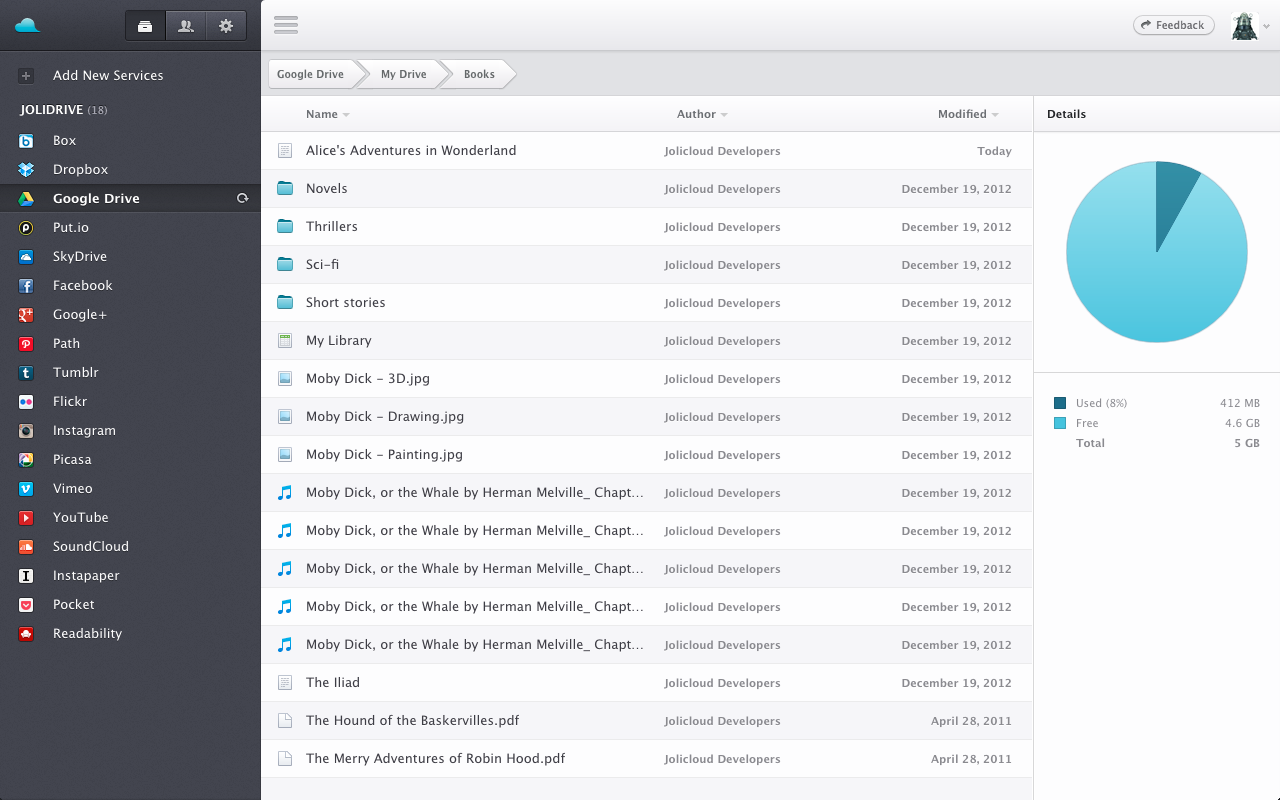
Managing multiple cloud services can be a pain, even with widespread Windows Explorer integration. Fortunately, you don’t have to handle the job on your own: Jolidrive from Jolicloud creates a cloud services dashboard that displays your Box, Dropbox, Google Drive, SkyDrive, SugarSync, and Ubuntu One files in one location. Jolidrive is especially helpful when you’re on a public PC and you need access to your cloud files.

Jolicloud
Jolidrive creates a cloud services dashboard that displays your Box, Dropbox, Google Drive, SkyDrive, SugarSync, and Ubuntu One files in one location.

The service adds a few handy features of its own, such as music and video streaming, Google Drive document editing, and integration with Pocket and Instapaper. You can also connect various social networks—including Facebook, Google+, and Tumblr—to Jolicloud to view your social feeds in a Pinterest-style layout.

Jolicloud doesn’t offer a way to transfer files between cloud services. A similar service called Otixo does provide that functionality, but Otixo no longer offers a free version of its service, alas.

And that’s that. Welcome to your fully functional and uber-flexible hard drive in the cloud! Now, how to fill all that free space…

5 Tricks to Use Your Android Phone as a Travel Guide

Source: Howtogeek.com/

Leave the paper maps, outdated travel guides, and thick dictionaries at home when you go traveling — all you need is an Android smartphone. You can do everything offline with features built into Android and free apps.

Take advantage of these tricks and you can travel without using your data connection, possibly saving thousands of dollars on exorbitantly expensive roaming data fees without giving up the convenience of your smartphone.

Offline Maps

Google Maps on Android has offline support. This feature was previously considered experimental, but it’s now stable. You can download map areas to your phone to view offline. When you’re in the area, you can open Google Maps and use your smartphone’s GPS as well as the saved maps to view where you are. You don’t need to stumble around with a traditional paper map.

Google Maps doesn’t provide offline navigation, which means you can’t ask it for directions — but you can see where you are on the map. If you ask Google Maps for directions when you’re on a Wi-Fi connection and then go offline, you can continue to follow the directions and view your location on the map completely offline. Only searching for directions requires a Wi-Fi connection.

To download maps for use offline, open Google Maps, tap the Menu button, and select Make Available Offline. Select a map region and tap Done — your phone will download it for use offline.

You can manage your offline maps from under My Places. Offline maps areas are listed under the Offline category.

Offline Translation, Voice Recognition, and Speech

Google Translate now has support for offline translation. You can download dictionaries and use the Google Translate app to translate words and phrases between languages, just as you would in a web browser.

Better still, Android 4.2 includes offline speech-to-text and text-to-speech features. If you have a smartphone running Android 4.2, you can also download the appropriate language support for use offline. This will allow you to speak words into your phone and have them translated in Google Translate. You can also use Google Translate to have your smartphone speak a foreign-language word back to you — all offline.

To get started, download the official Google Translate app for Android. Open it, tap the menu button, and select Offline Languages. Download the languages you want to use offline. The Google Translate app will now work normally for these languages, even when you’re offline.

On Android 4.2, you can install offline voice support by opening your phone’s Settings screen, tapping Language & input, and tapping the Settings button to the right of Google voice typing.

Tap Download offline speech recognition and download the languages you want to use offline. You can then speak these languages into your phone or have them spoken back to you in all apps, including the Google Translation app.

Travel Guides

In the age before the Internet, people purchased travel guides made of paper. These travel guides contained maps, lists of attractions, information about the local customs, and other such information that would be useful to a traveler in the area. We don’t need such travel guides anymore with the Internet — but what about when you’re offline?

Several different organizations produce free travel guide apps for Android, but we found TripAdvisor’s apps were the best. TripAdvisor offers city-specific travel guide apps for locations like New York, Paris, Rome, London, and more. Install one of the apps and you’ll have a variety of useful offline features, such as the ability to find restaurants and attractions nearby, view offline reviews, and get pointed there using your device’s GPS. You can also locate nearby transit stations, view nearby ATMs, and even use an offline map — just in case Google Maps doesn’t work right.

To use one of TripAdvisor’s travel guides, first download it from Google Play. You must launch the app and download its content before it will work offline.

Finding Wi-Fi Hotspots

Offline apps are great, but you’ll probably want to get online occasionally. To do this, you’ll need to find a Wi-Fi hotspot. Wi-Fi hotspots aren’t available everywhere, however — finding them can sometimes be a challenge. JiWire’s WiFi Finder is a free app that can download a database of Wi-Fi hotspots to your phone. You can then open the app, view how far away you are from these known Wi-Fi hotspots, and make your way towards them.

After you’ve installed the app, open it, tap the Menu button, and tap Download Database to download its database of Wi-Fi hotspots to your device.

You can then use the app to locate nearby Wi-Fi hotspots — both free and paid ones.

More Apps

Apps for many other things you might want to do offline are available in Google Play, whether you’re looking for the ability to quickly do unit and currency conversions offline or you want an offline map of a city’s public transit system.

If you’re driving and want an offline navigation solution, try OsmAnd. It’s free, uses OpenStreetMap data, and will give you driving (and walking) directions offline.


Of course, these apps can also be useful to use maps offline and locate Wi-Fi hotspots in your home city if you’re trying to save money by going without a data connection or reducing the amount of data you use.

What Is A Blog And Blogging?

Nowadays, most of you would have heard a lot about BLOG or BLOGGING and considered it just another type of a website. Actually, the word BLOG is an abbreviation of “WEBLOG” and to make it easy for you to understand, it’s more like a Personal Diary Writing. You know there are few people who always write a note at the end of the day in a personal diary, about what they did whole day and how it went. Blogging is almost the same thing in which you can write the updates about yourself, technology news, general stuff on a daily basis and the article are arranged on the Internet in a reverse chronological order (means from the latest date to old)It’s not a new thing or concept, Blogs are here for more than 10 years now. It’s a way to communicate with people, tell them what you know about or want to share with them. While browsing the Internet, you often do not know if you are looking at a blog or at a traditional Website. But it doesn’t matter what it is, they are both designed to do the same thing, which is to share the information with the public / audience.

In the beginning, blogs were used as a personal diary or a journal and people were sharing their daily routines and works with their friends and community on the Internet. Still many of my friends do that, they simply write their whole day routine on the Internet, some of them writes about politics in general and than many people leave their comments / remarks on their articles. It’s like sharing of thoughts with the rest of the world / community.

Blogs Nowadays
But people who think more (smart people), took the idea and converted these blog in their own way using the same technology. Now there are 1000s of 1000s professional blogs available on the Internet related to News, Computers, Bio-Chemistry etc., you name it and you will get the blog about it. You just have to think the way you want to use your blog and share the information with the world. If the idea clicked, you can then earn good amount of cash from it. (But it depends on many factors which we will talk about in the future)Many blogs are focused on a particular subject or topic  such as General News, Computer tips n tricks, Internet news etc., while others are a combination of multiple subjects. If it’s not your personal blog, than to increase the viewership or to have a discussion on multiple topics, you can ask others to write on your blog and that way your blog will then have multiple Authors, each writing on the different topics altogether like sports, technology, photography, etc. It’s really a good idea if a group of friends make one blog and then each person writes something in which he has good expertise.

It’s really not a big deal to write a blog about anything, because it doesn’t require any kind of technical expertise (at least for a basic blog). If you are passionate enough about sharing the information with the world, then there are websites (free) which give you enough services to fulfill your desire. Blogging can be fun, especially if you like reading, writing and talking about your favorite subject with the rest of the world. Believe me, It is a great stress reliever (but you need to take lots of stress in order to run a good professional blog as well). Most of all, there is no limitation in having a number of blogs. You can have multiple blogs with multiple topic discussions.

Layout Of Typical Blog

Most of the blogs will look something like as shown below:
https://i0.wp.com/mocchau.us/images/bloglayout.jpg
 And you will find following things at least on their pages:1. The topics will be arranged date vise. The newest will be on top.
2. On your left or right hand side, there will be an Archive Area where you can search for old articles.
3. Below every post or article, there will be an area where other people can comment on your post
4. A feed section like RSS or Atom for easy follow-up. (Read here : What is RSS)

5. A social bookmarking icons (Facebook, Twitter, etc.) for easy follow-up.Last Words

In this article I tried to highlight the purpose of a Blog, what blogs really are and what they really mean. At least after reading it, just think for a while that is it for you? Are you interested in doing it? Do you want to learn more about it? If the answer to all of these questions is yes, then in the next article we discuss who should really do blogging?
Do you have your own blog? Did you ever try to make one? What are your thoughts about blogging? Don’t forget to leave your Comments / Feedback below

Sài Gòn, Khu phố có “50 quốc gia”

Source: Zing.vn

                              image

Tại P.Tân Phong Q.7, có một phố nhỏ tập trung cư dân của 50 quốc gia
Người ta gọi đây là khu phố “đa quốc gia

Vì nhiều lý do khác nhau, đã có nhiều người đến từ Hàn Quốc, Nhật Bản, Trung Quốc, Malaysia, Thái Lan, Indonesia, Singapore, Philippine, Ả Rập, Iran,… (châu Á); Anh, Pháp, Nga, Đức, Thụy Điển, Thụy Sỹ, Áo, Bỉ, Bungari, Hà Lan, Ba Lan, Italia, Tây Ban Nha, Bồ Đào Nha… (châu Âu);  Mỹ ,  Canada ,  Brazil … (châu Mỹ);  New Zealand , Úc… (châu Úc) và một số người đến từ châu Phi tập trung sinh sống tại KP3, 4 của P.Tân Phong. Đây là một cộng đồng dân cư đa quốc gia, đa ngôn ngữ, với nền văn hóa phong phú đa dạng.

image

Một nhà hàng bán Hàn Quốc lại khu phố “đa quốc gia”

Ấn tượng đầu tiên của những người mới đến khu phố “đa quốc gia” này là hệ thống nhà hàng tên nước ngoài chằng chịt. Như nhà hàng Ấn Độ, Nhật Bản, Hàn Quốc; siêu thị, phòng khám đa khoa của Hàn Quốc; dịch vụ spa của Nhật Bản, Hàn Quốc… Cũng có vài nhà hàng Việt nằm lọt thỏm giữa cơ man nhà hàng ngoại. 

image

Một nhà hàng Thái

Hầu hết cư dân người nước ngoài sinh sống tại đây đều có tác phong công nghiệp rất cao. Cứ mỗi sáng sớm, họ vội vã rời nhà, lên xe đưa đón đến nơi làm việc đóng tại các quận ngoại thành SÀI GÒN, hoặc các tỉnh lân cận như Bình Dương, Đồng Nai. Con cái của họ cũng được xe đưa đón tới các trường dân lập quốc tế.

Chị Ana đến từ Đức sáng nào cũng chở con gái ra trạm xe đưa đón để con tới trường dân lập quốc tế Việt Úc ở Q.9. Chị đưa con ra giao tận tay cho cô giáo, nhắc nhở con thắt dây an toàn rồi mới quay về đi làm. Buổi chiều cả gia đình lại dắt nhau xuống nhà hàng Đức để ăn uống và dạo chơi. Đầu giờ tối, hầu hết mọi người tập trung ở các quán ăn của cộng đồng mình để thưởng thức những món hợp khẩu vị. Các quán ăn thường đóng cửa sớm hơn các quán bar, spa, massage. Nếu khoảng 22h đêm, hầu hết các quán ăn đã đóng cửa thì các quán bar, karaoke, cà phê vẫn hoạt động tới 2 – 3h sáng ngày hôm sau.

image

Một cư dân người Nhật tại khu phố “đa quốc gia” dắt chó đi dạo

Mỗi cộng đồng có những cách sống khác nhau. Đối với người châu Á, họ sống và sinh hoạt khép kín hơn. Chị Thúy Hà, nhân viên giám sát của một trường quốc tế thường xuyên tiếp xúc với các em học sinh ở khu phố này, cho biết người Hàn Quốc (chiếm đến 80% cư dân ở đây) sống rất khép kín và chú trọng tới gia đình truyền thống. Họ thuê nhà tập trung thành từng xóm, nhiều gia đình có 3 thế hệ cùng sinh sống tại đây.

Người Hàn siêng năng, cần cù nên chú trọng tới hiệu quả công việc, nhất là giờ giấc. Giáo viên muốn gặp học sinh tại gia thì phải lên lịch hẹn, khi đã hẹn thì không được tới trễ. Có nhiều em cho biết cuộc sống bên Hàn rất khó khăn, phải làm lụng rất vất vả, nhưng khi cha mẹ sang Việt  Nam  mở nhà hàng thì cuộc sống thoải mái hơn nhiều. Cứ mỗi chủ nhật vào tuần cuối cùng trong tháng, họ tập trung nhau tại một chỗ để trao đổi thông tin và dẫn con cái sinh hoạt ngoại khóa như nhặt rác ở các công viên.

image

Học sinh người Hàn Quốc qua đường đón xe buýt để đến trường.

Chị Ngọc Trâm, giáo viên của một trường trong “khu làng đa quốc gia”, cho hay người châu Âu cởi mở, hồ hởi hơn người châu Á. Họ luôn đề cao ý thức và quyền công dân của mỗi cá nhân nên ít khi hỏi han và quan tâm đến cuộc sống riêng tư của người khác như người châu Á. Người châu Âu thuê nhà biệt lập chứ không thành cụm như người Hàn Quốc, Nhật Bản. Hiếm khi họ để ý tới hàng xóm nếu không có gì cấp thiết.

Anh Phước Dũng, nhân viên bảo vệ, cho biết cứ trung bình 10 người ở đây thì chỉ có một người Việt  Nam . Người Việt sinh sống trong khu này đa phần là tầng lớp “đại gia”. “Những người nước ngoài biết tiếng Việt sống khá thân thiện, vui vẻ, khi gặp là họ chào hỏi. Như cặp vợ chồng người  Brazil  và Mỹ là bác sĩ thú y sống khá tình cảm, đi đâu họ cũng cầm tay, nhưng khi nào đi ăn thì tôi thấy họ tiền của ai người ấy trả”, anh Dũng cười cho biết.

image

Một tiệm Spa ở khu phố 3

Gia đình ba thế hệ

Người Việt và  Philippines  trở thành thiểu số. Chủ yếu dân ở đây là người Hàn Quốc. Họ sống cả gia đình, gồm ba thế hệ ông bà, con, cháu. Người Việt  Nam , số ít, làm công chức. Người Phillipines, chừng hơn chục nóc gia, làm đủ thứ việc. Anh Thái kể: “Có gia đình  Philippines  vợ dạy tiếng Anh, chồng chạy xe ôm”.

Những người Việt  Nam  ở khu này nói với tôi: “Người Hàn Quốc đủ loại, kinh doanh cũng có, mở công ty cũng có. Nhưng không ít người cho thuê nhà bên Hàn Quốc rồi lấy tiền đó sang Việt  Nam  thuê nhà ở cho đỡ chi phí”.vì giá sinh hoạt ở VN rẻ hơn bên Hàn quốc .

Người dân Việt ở đây nhận xét: “Cứ thấy có lốc nhà mới xây là họ tới để thuê, sống ở nhà mới cho sướng. Nhà cũ thì họ để lại cho những người mới sang”.

image

Lao công ở khu phố đa quốc gia

Cán bộ ở tổ dân phố đưa tôi gặp vài cò đất chuyên nghiệp. Đó là một người phụ nữ Hàn Quốc chừng 50 tuổi, giỏi tiếng Việt; một người đàn ông khác thậm chí mở cả văn phòng nhà đất. Ông kết nối với người từ Hàn Quốc qua. “Giá hoa hồng môi giới bằng tiền thuê nhà một tháng, chủ nhà Việt  Nam  phải trả”.

Bác Đinh Văn Cải trước là trưởng khu phố 3 giờ là trưởng khu phố 4 của phường Tân Phong. Ông thông thạo cả hai khu vực dân cư mình quản lý: “Khu phố 3 của phường Tân Phong có 5.800 nhân khẩu nước ngoài. Người Việt chỉ hơn 3.000 nhân khẩu. Khu phố 4 có 5.100 khẩu nước ngoài. Người Việt Nam cũng chỉ chừng 3.000 người”.

Theo bác Cải, trong số hơn 1 vạn khẩu nước ngoài ở hai khu phố mà bác quản lý thì “80% là người Hàn Quốc”.

Cuộc sống muôn màu

Mới đây họp bầu ban quản lý khu phố, một người châu Âu lấy vợ Việt  Nam  đã ứng cử xin làm công tác tổ dân phố.Kết quả mọi người đã không bầu cho ông vì ông … thừa nhiệt tình nhưng lại thiếu tiếng Việt thậm chí cả tiếng Hàn.

“Chẳng nhẽ ông đi xuống tổ dân phố lại phải kèm thêm phiên dịch” –

Điểm đặc biệt của phường Tân Phong số người nước ngoài xấp xỉ người Việt  Nam . Theo thống kê sáu tháng đầu năm 2012, người Việt có 16.127 nhân khẩu, người nước ngoài là 10.168 nhân khẩu. Chúng tôi chủ trương xây dựng khối đại đoàn kết trên tinh thần người nước ngoài nhập gia tùy tục.

Hôm Trung thu vừa rồi có mấy người châu Âu tặng tiền cho anh chị em lao động trong khu, làm quà dành cho trẻ con ở nhà.

Tuy vậy, công việc bảo vệ an ninh trật tự khu phố cũng phức tạp. Bác Cải kể, cảnh sát đã phá băng nhóm lừa đảo qua mạng tại khu phố 3, chúng gồm 38 tên người Trung Quốc, thuê ngôi nhà 3 tầng, không ra ngoài, chỉ cho một tên ra mua các loại thực phẩm. Lúc phá án trong nhà vẫn còn trữ mấy tạ gạo.

Một tụ điểm mát xa do chủ người Hàn Quốc tổ chức, khi phá án, tiếp viên vứt cả quần lót xuống đất mà chạy.

“Khách lừa lái xe taxi, không trả tiền, chui vào khu chung cư và lên phòng ngủ mất dạng. Lái xe taxi đội mưa, đợi nửa tiếng không thấy họ đâu”.

Cảnh sát thường giải quyết những việc như chồng đóng cửa, đánh vợ dã man, phải giải cứu. Ẩu đả vì xích mích thì xảy ra thường nhật.

“Người Việt  Nam  mình có tính nhẫn nhịn, nếu không cũng rất dễ xảy ra đánh nhau, do nhiều người nước ngoài hay nổi nóng” – mọi người nói với tôi.

image

Trẻ em Hàn Quốc trong lớp học nhạc

Đi vào khu phố 3, khu phố 4, phần lớn biển quảng cáo đều bằng tiếng nước ngoài. Hiếm hoi lắm mới thấy tấm biển chữ Việt mà không phải là song ngữ.

Chúng tôi ghé vào một lớp dạy nhạc bên ngoài đề chữ Hàn. Hai vợ chồng người Hàn đang dạy 5 học sinh. Mỗi em ngồi một phòng riêng, ngăn bằng kính trong. Người giáo viên Hàn gần 60 tuổi nói với tôi: “Chúng tôi ở Việt  Nam  4 năm, dạy cho trẻ em Hàn Quốc mỗi ngày vài giờ”.

Bác Cải bảo:“Người nước ngoài tranh giành nhau mặt bằng gửi xe, để hàng, bị phạt hoài. Hôm nọ có hai ông chủ quán người nước ngoài cãi nhau, một ông lấy vợt tennis đánh ông kia, ông bị đánh lập tức vào nhà lấy hai con dao ra đâm con ông kia”.

Khác biệt văn hóa:

Một trung tâm Tây y Hàn Quốc, một phòng khám đông y Hàn Quốc, rất nhiều lớp học Hàn mọc lên.

image

Ban bảo vệ giữ gìn an ninh cho khu phố 3

Bác Cải nói với tôi: “Hai khu phố này hoàn toàn không có đình chùa đền miếu nên người Việt muốn thực hiện các nghi thức tôn giáo tín ngưỡng truyền thống thì phải đi đến các nơi khác”. Người Việt trở thành thiểu số nên có những nét văn hóa cũng bị phai nhạt.

Một số người nước ngoài rất hiếm khi giao tiếp với người Việt Nam. Họ ra vẻ không biết tiếng Việt, nhưng “lúc mua bán thì thấy nói ào ào”.

Bác Cải tâm sự: “Tôi đi vận động gây quỹ thì một ông ngoại quốc mở tiệm bán thịt heo ở khu phố 4 hua dao đuổi, ý nói rằng việc đó của các ông, không phải của chúng tôi”.Bác thấy ông đồ tể cầm dao, cũng sợ, không dám vào.

Khánh Trung
Theo Infonet

Người nếm thức ăn cho Hitler kể cảm giác hãi hùng

Source: AP

Margot Woelk là một trong những người chuyên nếm thức ăn cho trùm phát xít Đức Adolf Hitler. Người phụ nữ này đã phải chung sống với cảm giác hãi hùng về những món ăn chay trong suốt một thời gian dài.


Trùm phát xít Hitler dùng bữa tối bên cạnh người tình Eva Braun trong bức ảnh không rõ ngày tháng.

Và trong hơn một thế kỷ qua, Margot Woelk, năm nay 95 tuổi, đã chôn chặt trong lòng bí mật của mình. Cụ không cho ai biết, kể cả với người chồng mà tính đến nay đã qua đời 23 năm.
Mãi vài tháng sau sinh nhật lần thứ 95, Woelk mới tiết lộ sự thật về vai trò thời chiến của mình: người nếm thức ăn cho Adolf Hitler.

Woelk, khi đó mới ở độ tuổi 20, đã trải qua 2 năm rưỡi là một thành viên trong nhóm 15 cô gái trẻ nếm thức ăn cho Hitler để đảm bảo các món ăn không bị nhiễm độc trước khi trùm phát xít này thưởng thức tại “Wolf’s Lair”, trung tâm chỉ huy được canh phòng cẩn mật của ông ta ở nơi bây giờ là Ba Lan. Tại đây, Hitler đã dành phần lớn thời gian của mình trong những năm tháng cuối Thế chiến II.

“Ông ta là một người ăn chay. Ông ta không ăn thịt trong toàn bộ thời gian tôi ở đó”, cụ Woelk kể về trùm phát xít Hitler. “Và Hitler hoang tưởng rằng người Anh sẽ đầu độc ông ta – đó là lý do ông ta có tới 15 cô gái nếm thức ăn trước khi dùng bữa”.

Trong bối cảnh nhiều người Đức phải chật vật với tình trạng thiếu đói với những bữa ăn đạm bạc bởi chiến tranh kéo dài, nếm thức ăn cho Hitler ở mặt nào đó cũng có lợi.
“Đồ ăn rất ngon, toàn là những loại rau ngon nhất, măng tây, ớt chuông, tất cả mọi thứ bạn có thể nghĩ đến. Và luôn có một suất cơm hoặc mì”, cụ nhớ lại.

“Nhưng với tâm trạng sợ hãi triền miên – chúng tôi biết rõ tất cả những tin đồn đầu độc và không bao giờ thấy ngon cả. Mỗi ngày chúng tôi đều sợ đó sẽ là bữa ăn cuối cùng của đời mình”.


Margot Woelk khi trả lời phỏng vấn của AP ngày 25/4 tại Berlin.

Mãi giờ đây, khi đã về già, Woelk mới tiết lộ những gì mà cụ giấu kín lâu nay do xấu hổ và sợ bị truy tố vì làm việc cho phát xít, mặc dù cụ khẳng định mình chưa bao giờ là thành viên của Đức Quốc xã. Woelk kể lại câu chuyện của mình khi xem lại album ảnh với những bức hình cụ thời trẻ, ở cùng căn hộ tại Berlin nơi cụ ra đời năm 1917.

Woelk lúc đầu tiết lộ bí mật của mình cho một phóng viên ở Berlin cách đây vài tháng. Kể từ đó, dư luận bắt đầu chú ý đến chuyện cuộc đời cụ. Các giáo viên lịch sử viết sách và hỏi xin cụ về các bức ảnh để dạy cho học sinh của mình. Một số nhà nghiên cứu còn đến thăm và hỏi Woelk về nghề nếm thức ăn cho Hitler.

Woelk cho hay, mối quan hệ của cụ với Hitler bắt đầu khi cụ rời Berlin để tránh các cuộc không kích của quân Đồng minh. Chồng cụ khi ấy đang phục vụ trong quân đội Đức nên Woelk chuyển tới sống với người thân ở Rastenburg cách xa 700km về phía đông. Sau đó, cụ bị gọi quân dịch và được phân công nếm thức ăn cho trung tâm Wolf’s Lair trong khoảng thời gian 2 năm rưỡi.
Woelk cho biết, Hitler là một con người luôn giữ bí mật, thậm chí ngay trong sự an toàn tương đối tại sở chỉ huy và cụ chưa từng trực tiếp nhìn thấy trùm phát xít.


Margot Woelk tại căn hộ của bà tại Berlin sau khi trả lời phỏng vấn của AP

Vụ đánh bom ám sát Hitler bất thành năm 1944 đã khiến cho 5.000 người bị xử tử. Sau vụ nổ, căng thẳng tăng cao quanh sở chỉ huy. Woelk cho biết, phát xít Đức ra lệnh cho cụ rời nhà người thân và chuyển vào một ngôi trường bỏ hoang gần trụ sở. Khi quân Đức có xu hướng thua trận, một người bạn khuyên Woelk rời Worlf’s Lair và cụ đã bắt tàu trở về Berlin sống lẩn trốn.

Woelk cho hay, những phụ nữ khác trong nhóm thử thức ăn vẫn quyết định ở lại Rastenburg vì gia đình họ đều ở đó. “Sau đó, tôi hay tin tất cả 14 cô gái đều bị bắn chết hết”, cụ kể.

Cũng giống như hàng triệu người Đức và châu Âu, Woelk bắt đầu gây dựng lại cuộc sống. Cụ cố gắng quên đi ký ức cay đắng cùng nỗi xấu hổ vì có quan hệ với một chế độ tội ác. Cụ làm nhiều công việc khác nhau. Chồng cụ xuất ngũ trở về và chết cách đây 23 năm.

“Trong nhiều thập niên, tôi đã cố gắng giũ bỏ những ký ức đó. Nhưng chúng luôn hiện hữu và ám ảnh tôi mỗi đêm”, Margot Woelk kể.

4 cách gỡ bỏ quảng cáo trên Android

Source: TGTH

1. Adblock Plus.
2. AdAway.
3. Lucky Patcher.
4. Chặn quảng cáo trên Opera Mobile.

Chúng ta thường có xu hướng sử dụng “chùa” những ứng dụng nhưng lại không muốn bỏ ra bất kỳ một khoản chi phí nào. Điều này đồng nghĩa với việc smartphone của bạn sẽ là mục tiêu của các quảng cáo.

Những banner quảng cáo này không những làm mất thẩm mỹ, mà còn sử dụng lưu lượng data của bạn để tải về những quảng cáo xấu xí khác? Nếu bạn cảm thấy quá mệt mỏi vì các đoạn quảng cáo cứ xuất hiện liên tục và chiếm nhiều diện tích trên màn hình, thì dưới đây là những cách có thể giúp bạn “trừ khử” chúng trên các thiết bị Android.

1. Adblock Plus

Adblock Plus có nhiều phiên bản khác nhau, dành cho cả Windows lẫn Android. Nhưng dù là trên Windows hay Android, Adblock Plus luôn là một “nỗi sợ hãi” của nhiều ứng dụng miễn phí bởi ứng dụng này có khả năng chặn đứng mọi quảng cáo xuất hiện trên màn hình khi người dùng sử dụng các ứng dụng miễn phí.

Mà những mẩu quảng cáo khó chịu này lại là nguồn thu chính của những nhà phát triển ứng dụng miễn phí bởi chẳng ai cho không bạn cái gì cả. Lo ngại trước vấn đề này, Google đã “tiễn” Adblock Plus ra khỏi khu chợ Google Play của mình cách đây không lâu. Tuy nhiên, bạn vẫn có thể cài đặt theo hướng dẫn dưới đây:

Đầu tiên, bạn tải Adblock Plus phiên bản mới nhất (2.2) tại đây hoặc tại trang này. Bạn có thể tải về trực tiếp bằng smartphone của mình hoặc thông qua máy tính rồi sao chép vào smartphone.

Sau khi cài đặt và kích hoạt sử dụng, Adblock Plus sẽ chọn dùng một cách thức cập nhật dữ liệu mới cho bộ lọc sao cho phù hợp nhất với thiết bị của người dùng (tương tự tính năng Update của nhiều phần mềm khác, nhưng ở đây không phải cập nhật phiên bản, mà là cập nhật dữ liệu bộ lọc).

Cũng từ đây, Adblock Plus sẽ luôn chạy ngầm trong hệ thống để ngăn chặn không cho quảng cáo “xâm nhập”.

Người dùng có thể thay đổi cách cập nhật này, bằng cách nhấn vào Filter subscription. Ở đây có 2 tùy chọn Manual (cập nhật thủ công) và On start (tự động cập nhật mỗi khi chạy Adblock Plus tùy theo ý thích của bạn).

Một nhược điểm nhỏ của Adblock Plus đó là ứng dụng này sẽ chỉ phát huy được tối đa khả năng lọc quảng cáo nếu smartphone Android đó đã được root. Còn với một thiết bị chưa được root, Adblock Plus chỉ có thể lọc quảng cáo đối với các truy cập bằng Wi-Fi.

Theo đó, nếu thiết bị sử dụng hệ điều hành Android phiên bản 4.1.2, 4.2.1 hoặc Android 3.0 trở về trước, người dùng cần phải cấu hình proxy cho kết nối Wi-Fi thì Adblock Plus mới hoạt động được.

Sử dụng Proxy là localhost, port là 26571. Còn smartphone Android chưa root, sử dụng Android 3.1 hoặc cao hơn (nhưng thấp hơn 4.1.2) không cần cấu hình proxy, nhưng Adblock Plus chỉ giúp lọc các quảng cáo qua traffic từ kết nối Wi-Fi.

Lưu ý: Hệ điều hành Android thường có tính năng ngăn chặn cài đặt ứng dụng không rõ nguồn gốc và mặc định tính năng này đang được kích hoạt.

Vì vậy, trước khi cài đặt Adblock Plus từ tập tin đã tải về, bạn cần vào Settings chọn Unknown sources ở mục Applications hoặc Security (tùy phiên bản Android) và nhấn OK để xác nhận. Bây giờ, bạn chỉ cần bấm vào tập tin *.apk đã tải về để cài đặt.

2. AdAway

Cũng tương tự Adblock Plus, AdAway sẽ giúp bạn loại bỏ hoàn toàn các quảng cáo phiền phức. Cơ chế hoạt động của AdAway vô cùng đa dạng, hiệu quả, có thể ngăn chặn được rất nhiều thông tin quảng cáo từ các nguồn đã được biết, hoạt động trên trình duyệt và ứng dụng bên trong hệ thống.

Mặc dù “số phận” của AdAway cũng chẳng “khá khẩm” hơn Adblock Plus trên Google Play, người dùng vẫn có thể cài đặt và sử dụng chợ ứng dụng F-Droid để tìm kiếm ứng dụng này.

Cài đặt và update phiên bản mới nhất của AdAway là bạn đã đi được một nửa chặng đường rồi đó. Ứng dụng yêu cầu HĐH Android 2.0 trở lên và thiết bị phải được root trước đó.

Hãy ghi nhớ rằng, khi bạn muốn gỡ bỏ ứng dụng này, điều trước tiên mà bạn cần làm là tắt ứng dụng đi (deactivate) bởi nếu không, quảng cáo sẽ vẫn bị chặn cho dù bạn có gỡ AdAway đi rồi.

Mặc định, AdAway hỗ trợ sẵn việc chặn quảng cáo từ một số dịch vụ, nhưng nếu có những dịch vụ quảng cáo lạ chưa được chặn, cũng như tên miền tương ứng của nó chưa được AdAway hiểu thì bạn vào Menu, chọn List, nhấn vào thẻ màu Black, nhấn Add.

Sau đó nhập tên miền của dịch vụ cần chặn quảng cáo, nhấn Add. Ngược lại, nếu muốn đưa một tên miền vào danh sách cho phép hiển thị tất cả nội dung, bạn thực hiện tại thẻ White. Sau mỗi thao tác cập nhật trên, bạn phải khởi động lại thiết bị.

Download tại đây.

3. Lucky Patcher

Lucky Patcher là một giải pháp khá hữu ích khác để xóa bỏ những banner quảng cáo xấu xí và khó chịu trên Android, nhưng để thực hiện được, điều tiên quyết là máy của bạn phải được ROOT rồi nhé!

Đầu tiên, bạn cần tải phần mềm Lucky Patcher về và cài đặt vào điện thoại của mình. Tiếp theo, chạy chương trình Lucky Patcher, khi hộp thoại Superuser Request hiện lên, chọn Allow.

Khi danh sách các ứng dụng cài đặt trong máy hiện lên, ứng dụng nào có quảng cáo thì bên dưới tiêu đề của chúng sẽ có cảnh báo “Google Ads Found!

Bấm vào ứng dụng mà bạn muốn gỡ bỏ quảng cáo khoảng 2 giây, sẽ có một bảng thông báo hiện ra. Đến đây, bạn chọn mục Remove Google Ads, vậy là những banner quảng cáo của ứng dụng hay game đó sẽ được gỡ bỏ.

Sau bước này, bạn có thể vào ngay ứng dụng và thử xem những banner quảng cáo có còn không nhé.

Download tại đây.

4. Chặn quảng cáo trên Opera Mobile

Cách này có thể thực hiện trên cả thiết bị Android đã root hay chưa root đều được, nhưng chỉ giúp chặn bớt quảng cáo trên các website khi duyệt web bằng Opera Mobile chứ không chặn được quảng cáo trên ứng dụng.

Đầu tiên, bạn sử dụng máy tính để tạo một tập tin có tên urlfilter.ini với nội dung được lưu ở địa chỉ này sau đó sao chép vào thẻ nhớ điện thoại.

Tiếp theo, mở trình duyệt Opera Mobile trên điện thoại, gõ “opera:config” (không có dấu ngoặc kép) vào thanh địa chỉ. Trên trang web hiện ra, nhập “URL Filter” vào ô tìm kiếm, rồi nhấn Choose để chỉ đường dẫn đến tập tin urlfilter.ini đã có trên thẻ nhớ. Xong, khởi động lại thiết bị.

Lưu ý: Nội dung trong tập tin trên chứa địa chỉ của những dịch vụ quảng cáo mà người dùng mong muốn chặn lại. Nếu muốn thêm một địa chỉ mới, bạn thêm vào cuối tập tin theo cú pháp tương tự.

Genk-Tổng hợp

Chủ đề tương tự:

How to reduce SkyDrive synching problems

Source: Internet

By Katherine Murray on April 24, 2013 in Best Practices

Although SkyDrive is a big part of Windows 8 and Office 2013, Microsoft’s online data-storage service falls somewhat short of its potential.

Fortunately, you can work around some of SkyDrive’s shortcomings. Here are some tips for living with SkyDrive.

SkyDrive promises run up against reality

I’ve recently completed three books on Windows 8 and Office 2013. Right from the start, I liked the save-to-the-cloud concept that is so much a part of the new OS and suite. During a typical work day, I move among a variety of computers and devices. I thought SkyDrive would provide a storage space for my documents that was simple to use and easily accessed from all my computers and devices. And I thought I could be sure I was always working with the latest version of a file and could also easily share those files with others as needed.

That was the promise of SkyDrive. Reality was something else.

For example, synching files between devices: It seemed I was spending far more time than I should, waiting for SkyDrive to sync the files produced on those various computers and devices. Different computers have different upload speeds. Surprisingly, my phone seems to be the fastest uploader of them all (though a phone is not ideal for managing files).

Frustrated by my SkyDrive experience, I was curious whether other SkyDrive users were troubled by similar problems. This article shares what I learned.

A (very!) short history of the SkyDrive service

SkyDrive has been with us for longer than you might think. Released in 2007, it was known — for about a week — as Windows Live Folders. It was then abruptly renamed Windows Live SkyDrive. In those days, when the cloud was still a novelty, remote-file storage was limited — both from a technology standpoint and in available space. In the ensuing years, as cloud storage has evolved, so has SkyDrive. Available storage space has increased and is now built on HTML 5. Also, its ability to connect to various apps and devices and its file-sharing capabilities have improved.

In 2012, Microsoft added a SkyDrive desktop application that let users more easily sync their files between devices. Now, for example, you can use SkyDrive to remotely fetch a file from any SkyDrive-enabled, Internet-connected computer. That’s handy if, while riding the train to work, you suddenly remember that the only current copy of that all-important presentation is still sitting on your home PC. Using SkyDrive, you can still grab the presentation — as long as you remembered to leave your home computer turned on and active.

Today’s SkyDrive gives new users 7GB of free storage space, and you can purchase up to 25 GB. (If you were using SkyDrive prior to April 2012, Microsoft allowed you to upgrade to 25 GB of storage for free.)

The most recent SkyDrive update arrived late last summer; Microsoft gave its cloud-storage service a makeover more in line with the new look of Outlook.com. Microsoft also invited Mac, iOS, and Android enthusiasts into the SkyDrive fold, giving it cross-platform compatibility rarely seen in Microsoft products. (SkyDrive is automatically included as an app on the Win8 Start screen.)

Sign in to any SkyDrive-enabled device using your Microsoft account, and your settings for that account — as well as SkyDrive preferences — travel with you from device to device. Office 2013 users also find SkyDrive prominently featured in the Open and Save As screens, where you can save a document to SkyDrive as naturally as you would to a folder on your hard drive.

Confronting — and solving — SkyDrive realities

Microsoft’s SkyDrive marketing messages, of course, paint an idyllic picture of anywhere, any-device file access and seamless integration with Office Web Apps. But as I’ve said, the SkyDrive synching is haphazard and sometimes unthinkably slow. For example, after saving a file to SkyDrive on my office system and then waiting for it to show up on the PC in the family room, I’ve sometimes resorted to emailing the file to myself so I could work on it immediately.

If you’ve had similar problems, try some of the following fixes to help your SkyDrive files sync a little faster.

  • Start by adjusting your settings. The first step is just finding the settings. Go to the Windows notification area and click the small up-arrow. Right-click the SkyDrive (cloud) icon; a list of options will appear. Click Settings (see Figure 1), and the dialog box shown in Figure 2 opens.

    Figure 1. Click the notification arrow and right-click the SkyDrive icon to display a list of options.

    Figure 2. The Microsoft SkyDrive dialog box

    Under the SkyDrive Settings tab, make sure Use Office to sync files faster and work on files with other people at the same time is checked. If you’re working with SkyDrive and Office 2013, SkyDrive uploads only the changes you make to the file — not the entire file itself. Depending on the size of the file you’re synching, this feature should help uploads go faster.

    Next, under the Performance tab, confirm that Improve upload speed by uploading files in batches is selected. If you have a reliable Internet connection, this option groups and uploads files together rather than synching the files one at a time. Click OK when you’re done, to make the settings stick.

  • Check SkyDrive status and your upload speed. If your settings seem correct, you can check whether SkyDrive is having problems by going to the SkyDrive Service Status page. If you feel the service isn’t functioning properly and want to bring it to Microsoft’s attention, click the page’s report it link. (You can also click the History link to see what problems have already been reported.)

    You can also use a free online tool — Speedtest.net — to evaluate your network’s upload speed. Click the Start Now button; the site measures your download and upload speeds and displays the results within a minute or so.

    If your upload speed is what you expect but your SkyDrive sync time is especially slow, Microsoft suggests you try uploading the file after traditional business hours to see whether the load on the servers is the problem. If this still doesn’t fix the problem, try posting a query on the Microsoft Answers forum for SkyDrive.

  • Save and close the file; let the app work. Some of my early frustration with SkyDrive came from not understanding how the software operates. I thought because it worked in the background, files would continue to upload even when my computer was in sleep mode. Not true, as I learned the hard way. My PC will automatically go to sleep, even while SkyDrive is uploading. At that point, synching stops.

    So if SkyDrive seems to be synching slowly and you’ve run through the aforementioned solutions, check your Power Options in the Windows Control Panel. You might want to extend the time allowed before Windows puts the system to sleep (see Figure 3).

    Figure 3. Try extending the Put the computer to sleep time, to give SkyDrive sufficient time to finish synching.

When everything else fails, try this

If you have to resort to this next trick, SkyDrive really isn’t living up to its promise. This workaround is a bit clumsy — and it might seem chancy. But it might help if you’re pressed for time and SkyDrive does not seem to be finished synching your file.

As with most file-synching apps, SkyDrive puts a green checkmark on files and folders when they’re fully in the cloud and ready for access on other devices and for sharing. But sometimes, the checkmark doesn’t appear for an extraordinary amount of time. That can be a problem if, say, your editor is tapping her foot, waiting for that Word-based article you need to submit immediately.

I’ve tried emailing files stored in the cloud and lacking the checkmark; more often than not, the document was incomplete. But for some reason, if I copy and paste the file onto my local computer, the entire file is there! I assume this has something to do with the way SkyDrive saves and verifies files in the cloud.

If you’d like to try this trick, simply right-click the file in SkyDrive, click Copy, and then paste the file into the local folder of your choosing on your computer. Be sure to open the file before editing it or emailing it somewhere, just to make sure all contents are truly there.

SkyDrive will be a better product if Microsoft improves file synching. The easy integration with Win8 and Office 2013 makes it simple to save to the cloud, and the ease with which we can grab and share files among devices is something many of us need as we move from desktop to tablet to phone. But in order for all this magic to work, the files have to be available soon, not four hours from now.

Katherine Murray is the author of Microsoft Office 2010 Plain & Simple (Microsoft Press, 2010), Microsoft Word 2010 Plain & Simple (Microsoft Press, 2010), and Microsoft Word 2010 Inside Out (Microsoft Press, 2010). She also coauthored, with Woody Leonhard, Green Home Computing for Dummies (Wiley 2009), and she writes and tweets(@kmurray230) about green-tech issues.